Creating one .sdlxliff file for several virtually merged files

If you are working on at project with several files, and in particular if at least some of them are pretty small, and you did not merge them when the project was created – then it may be a nuisance that you cannot export them all into one file for review/proofreading.

However, the fact is that you can! A file necessary for this is created automatically as Studio auto-saves the files you are working on. This means that if you go to

C:\Users\<username>\AppData\Local\Temp

you will see that a .tmp file (with a non-meaningful name like “tmp123A”) is created with the interval set for auto-saving. (You will also see that there are a large number of those – and similar – temp files collected there, eventually taking up a lot of memory space. This is not a good thing, of course: normally, only the last of them is useful for this purpose. But don’t start deleting en masse – some of the temp files are necessary for you to be able to create target files.)

When the files are ready for review, just copy that last .temp file to a location of your choice, rename the file extension to .sdlxliff (and maybe give the file itself a meaningful name). Then you can use it as appropriate: send it to a colleague for reviewing it in Studio, or open it in Studio yourself for exporting for bilingual review. In the latter case, before you can perform any batch tasks at all, you need to (1) save the file, and (2) change its language (in the Files view) to the source language.

In all, this is excellent news, and you can read more about it in Paul Filkin’s blog post, Good bugs… bad bugs!, which includes a video tutorial. Thanks are also due to Yuji Yamamoto for discovering this in the first place.

Note: It has been known to happen (i.e. I and a few other people have noticed) that the AutoSave function suddenly does not work any more (but the temp function described above still does). You can check that by opening the AutoSave folder, located here:

c:\Users\[USERNAME]\Documents\Studio 2015\AutoSave\

and see whether it is updated appropriately. If not, it may help to deactivate the function and then activating it again (it is active by default). You will find it under File > Options > Editor; then look at the AutoSave header at the bottom in the righ-hand pane.

All this will of course be included in the the next edition of the manual.

From “In review 0%” to “In translation” or “Translated 100%”

Here is a problem reported by David Perry and solved by Jerzy Czopik.

1. When does Studio decide to go from “100% translated” to “In review 0%”? Some files do this automatically when I reach the magic 100% mark, others don’t. 

2. How can I go back to “In translation”? My package has  two files that refuse to go back to the “In translation” status, even though I can make changes in them. I have tried editing segments and changing the segment status globally, but the status does not change from “In review”.

Solution: Run the batch task “Translation count”. The status of the file will then be the result of the status of all segments. When all are “translated”, the file will be “Translated 100%”. When one or more are “draft” or “not translated”, the file will be “In translation”.

Error during Update from External Review

It’s not uncommon that the Update from External Review ends in error. This will happen if the review document was handled in Word 2003 or previous versions (even if the .docx format is retained), but it can happen for other reasons as well. However, this is often a solution:

  1. Open the problematic reviewed document in any version of Word and accept the changes as desired (if you haven’t already).
  2. Copy the thus changed reviewed target column.
  3. Insert the copy into the original review document and, as applicable, delete the extra right-hand column or accept all changes.
  4. Save the amended original review document and use that for the update process as above.

Suddenly the interface language is Chinese!

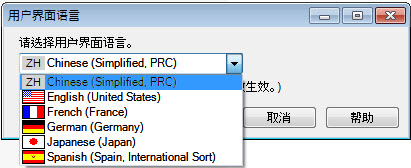
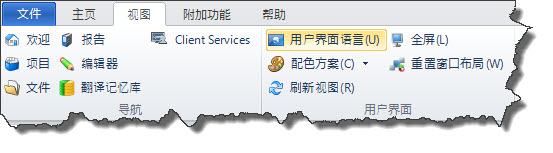
It has happened that a user opens Studio and, inexplicably, the interface language is Chinese! What to do when of course you cannot understand any of the commands? Here is how: click the highlighed button as shown below:

Then, in the new dialog box (below), click the downward arrow and select your language.

Click the OK button (which is in its usual place: second from the right). That’s all!


Printout only relevant web page content (not Studio-related – but useful!)

I don’t like reading long texts on screen. Also, I often need (or think I need) to save interesting and/or important stuff on paper.

But screen content is often cluttered with all sorts of irrelevant material. And sometimes also the layout makes direct printouts difficult to handle and read (e.g. the type size may be inordinately small on paper). One method to obtain nice printouts is to copy the relevant content and paste it into Word, whereupon you can edit it as you like. But this is not always easy; some web pages are very difficult to edit even in Word format.

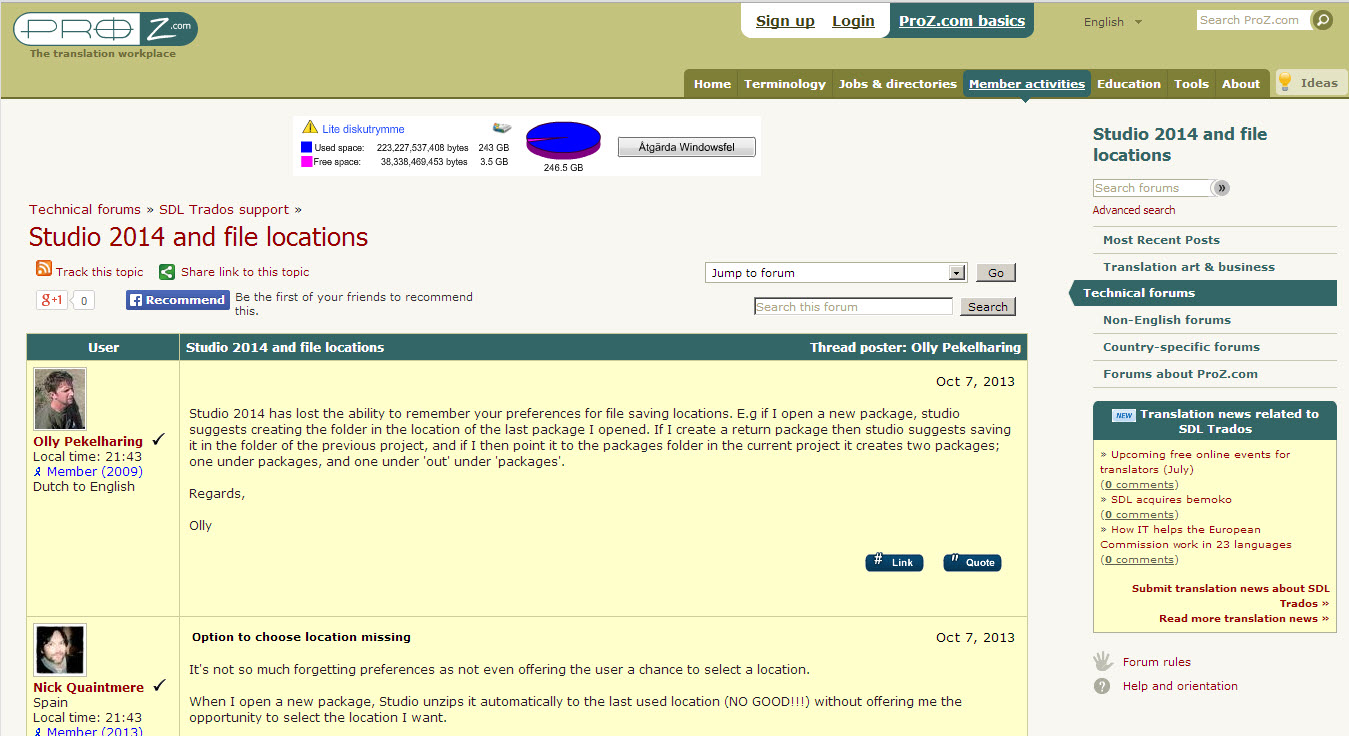
However, there is a solution. At the click of a button, the Evernote Clearly application (http://evernote.com/clearly/) reformats the web page content to something which looks good on paper. ProZ discussions is a good example. This is how a discussion looks originally on-screen:

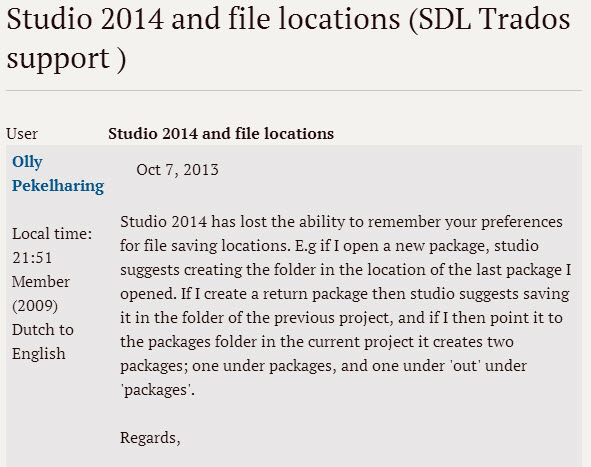
On several occasions, I have copied and pasted ProZ content into Word, but the convoluted table format makes it very difficult to achieve a good printout even so. With Evernote Clearly, this is what you see in your browser:


Obviously, this makes for a good printout. If you copy it into Word, the table layout is still there, but it’s relatively easy to re-format it as you like it.

Evernote Clearly is free and very easy to install and use. Its one drawback is that it only works with Google Chrome. It seems to work as expected on almost all occasions; only once did it happen that the selected content was not what I wanted. Good stuff!


Stepping between placeables – occasional problem

This is a function for inserting placeables/tags in the target text that I have come to appreciate very much: By pressing Ctrl+Alt+RightArrow/LeftArrow, you step between the placeables/tags in the source element, forwards or backwards; each placeable/tag is highlighted in turn. When you come to the correct one, you just press Enter to insert it. In a segment with many placeables/tags, this is really useful.

However, suddenly what happened when I used that command was that instead of the expected result, the screen was briefly blackened and then, when it showed again, it was rotated! Totally bizarre and not useful at all.

The problem, it appeared, was to do with the Intel Video programming, which had been reset following an update of its driver. The solution was to inactivate the Intel Video shortcuts: right-click the screen, select Graphics Options > Shortcuts > Inactivate.

Probably a seldom occurring issue, but it may be good to know what to do if you happen to be affected.

Creating a TM file from a Word table with source + target

Sometimes you have a Word document with source and target texts not in the usual Trados bilinugal format but simply as two columns in a table. Roger Sjölander’s nice macro handily transforms that table into a TM file in text format (but first make sure that the source is in the left-hand column). The macro is called Modul 1.bas, and you will find it here.

As with all .bas documents, you open the MS Visual Basic window (Alt + F11), open File > Import file and import the file in question.

If you want to assign a shortcut to it, here’s how (in case you do not remember):

Open Word’s Tools > Customize dialog. Click the Keyboard button. In the Categories list, click Macros. Select the macro in the list to the right. Enter the shortcut in the Press new shortcut key box, then click Assign then Close and Close again.

If you don’t use shortcuts, here’s how to run the macro:

Open the macro window (Alt + F8), go to the macro and click the Run button.

PS. If you receive a “5156 runtime error” message when you use the macro, it may be that you are trying to save the resulting file directly in the root catalogue (usually C:). Try moving it to a subdirectory (existing or new).

Copying “unselectable” screen texts is easy!

Have you got the widely spread FineReader from ABBYY? It is a tool used to extract text from PDF documents (and of course also for OCR-ing of paper documents; and similar tasks). If so, you may – like me – have missed that it includes a useful extra tool called the ABBYY Screenshot Reader, used for copying text in e.g. message boxes, file handlers and other places where you cannot just select the text and copy&paste it into Word or other places. It’s actually an excellent tool, very easy to use (and not particularly expensive either, if you don’t have FineReader – you can buy it separately at €9.95) and as I said, very useful. I’m sure that you, like me, many times have had occasion to copy by hand long texts in error messages – well, no more.

The latest version of FineReader is 11; I have version 10 and discovered that the Screenshot Reader is included there, too. All you have to do to check is select Start > All Programs > ABBYY FineReader, and if you have a recent enough version, this is what you see:


I suggest you place a shortcut icon in a corner of your screen so that it is easily available when you need it.

Basic editing functions to be familiar with and/or investigate

What follows is a (rather long) list of functions which I have found to be useful regardless of which job you are working on. If you are just starting to use Studio, chances are you are not familiar with all of them.

Note: Due to the intricacies of the various possible levels of settings – see p. 80 of the manual – any changes made via Tools > Options > Editor are not enforced in the currently open document but will only be activated the next time you open a project.

Confirmation, navigation between segments

(For the sake of simplicity, I use the term “segment” even if, strictly, a “row” is meant.)

Confirm a translated segment and move to next unconfirmed segment Ctrl+Enter
Confirm a translated segment and move to next segment Ctrl+Alt+Enter
Move to next segment DownArrow
Move to previous segment UpArrow
Select rows Use the row number column and select as usual. (I.e. contiguous rows: click the first number, then click the last one while pressing Shift. Non-contiguous rows: click each number while pressing Ctrl.)

Other actions on segments

(All these actions are also available by right-clicking in the row.)

Copy source to target Ctrl+Ins
Toggle between target and source F6
Add comment Ctrl+N
Split segment Right-click at the place for splitting and select Alt+Shift+T
Merge segments Select the segment numbers, right click and select Merge Segments. Note: If the first source segment ends with a paragraph character (not visible in the Editor view), merging is not possible.

Handling of TM searches

Any hits with matching percentage above the threshold value (see p. 135) is automatically inserted into the target segment.

Insert another TM hit (with number N): Alt+N.

Check or change TM settings

Select the Project Settings tab (above the TM pane) or go to Project > Project Settings.

Concordance

Search for term/expression in source segment Select it and press F3.
Search for term/expression in target segment Select it and press Ctrl+F3.
Insert concordance hit into target Place insertion point at appropriate place. Select the text and press Ctrl+Alt+F3 or select it, right click and select Insert into document.

Handling of placeables (including tags)

Placeables (unless tags) are marked with a blue underline. Note that also numbers are placeables (useful for long ones). Note also that numbers which you “translate” this way are automatically localized in accordance with the conventions of the target language (as defined by the operating system, i.e. by Microsoft).

Open a drop-down list of available placeables: Press Ctrl+Alt+DownArrow or Ctrl+comma.
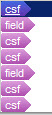
Select the appropriate one with Up/DownArrow and insert it with Enter.
Step between placeables with Ctrl+Alt+Left/RightArrow.

AutoSuggest (including AutoText)

Any AutoSuggestions are presented (as a drop-down list similar to the one for placeables) when you have entered 3-4 characters of the word.
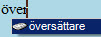
“Hits” are taken from AutoSuggest dictionaries (if present), MultiTerm databases (if present) and the AutoText list. For the former two, see the manual.

Add an AutoText entry Select the term/expression, press Alt+F7 and press Enter twice.
Add a MultiTerm entry Select source and target term, press Ctrl+F2 and then Ctrl+F12.

Filtering segments

Do not forget the filtering function:

(If you don’t see this toolbar, select View > Toolbars > Display filters.)
You can filter on segment types, segment locking and segment content, and also on specific text strings. Locking segments can be quite useful if you want to perform a specific action on all segments except certain ones – it may be fairly easy to filter out the “exceptions”, lock them, and then perform the action on all segments. Those that are locked will then not be affected.

Auto-propagation

Auto-propagation of changes (i.e. automatic performing of those changes on segments with source content that is identical to the one where the change is made) is enabled by default. However, the other options relating to auto-propagation are not. Take a look at Tools > Options > Editor > Auto-propagation and see whether perhaps more options would not be useful (I would say so).

Verify “translation” of numbers

The automatic checking that numbers are correctly “translated” is not enabled by default. I find this function very useful. Enable it at Tools > Options > Verification > QA Checker 3.0 > Numbers.

Export for review

To my mind, you get the best format for review by selecting File > Export for external review. By using this function and then importing the amended version, the translation will be automatically updated. See the manual, p. 192.

Updating the TM during translation

You can update the TM also with all translations with draft status at any time. Select File > Batch Tasks > Update Main Translation Memories or Udate Project Translation Memories. Click Next until the Files page opens. Make sure Draft is selected (if that is what you want) and click Finish.

“Database is locked”

Sometimes the first activation of a segment in a document results – after a long time of searching the TM – in this error message: “An error has occured whilst using the translation  provider [TM]: The translation memory data file engine returned an  error: The database file is locked. Database is locked.”

Several people have reported this problem, and various methods to solve it has been tried (this is taken from the invaluable TW_Users forum):

“The affected TM in most cases seems to be the very last (or one of the last) in a list of – say – 6 or 7 memories. So it looks like Studio is simply ‛running out of steam’ by the time it reaches the last memories in a list. I can simply recativate the affected memory and everything works fine until at some later point Studio again thinks it is ‛locked’. If I deactivate all other memories and only activate this ‛locked’ memory, it works fine.”

“Re-indexing the TM helped to get that working.”

“If I deactivate all other memories and only activate this ‛locked’ memory, it works fine.”

My own experience is that this only happens with very large TMs, but then it can happen even if that is the only TM I use. I have not tried re-indexing, but I have found that the following method works fine:

Continue to the next segment – which then strangely is looked up in the TM without problem (regardless of whether there is a hit or no). Then go back to the “problem” segment and confirm it. (And delete the error message in the Messages window.)

Googling for “Database is locked” gives quite a few hits, related to SQLite, and it seems to be quite a common issue with other applications.

Related to the fact that the error-producing search takes a very long time is the sometime complaint that a concordance search may take very long (in a large TM). This is simply because concordance searches are very resource-intensive.

Powered by WordPress | Designed by: backlink indexing | Thanks to Mens Wallets, warcraft gold and buy backlinks